
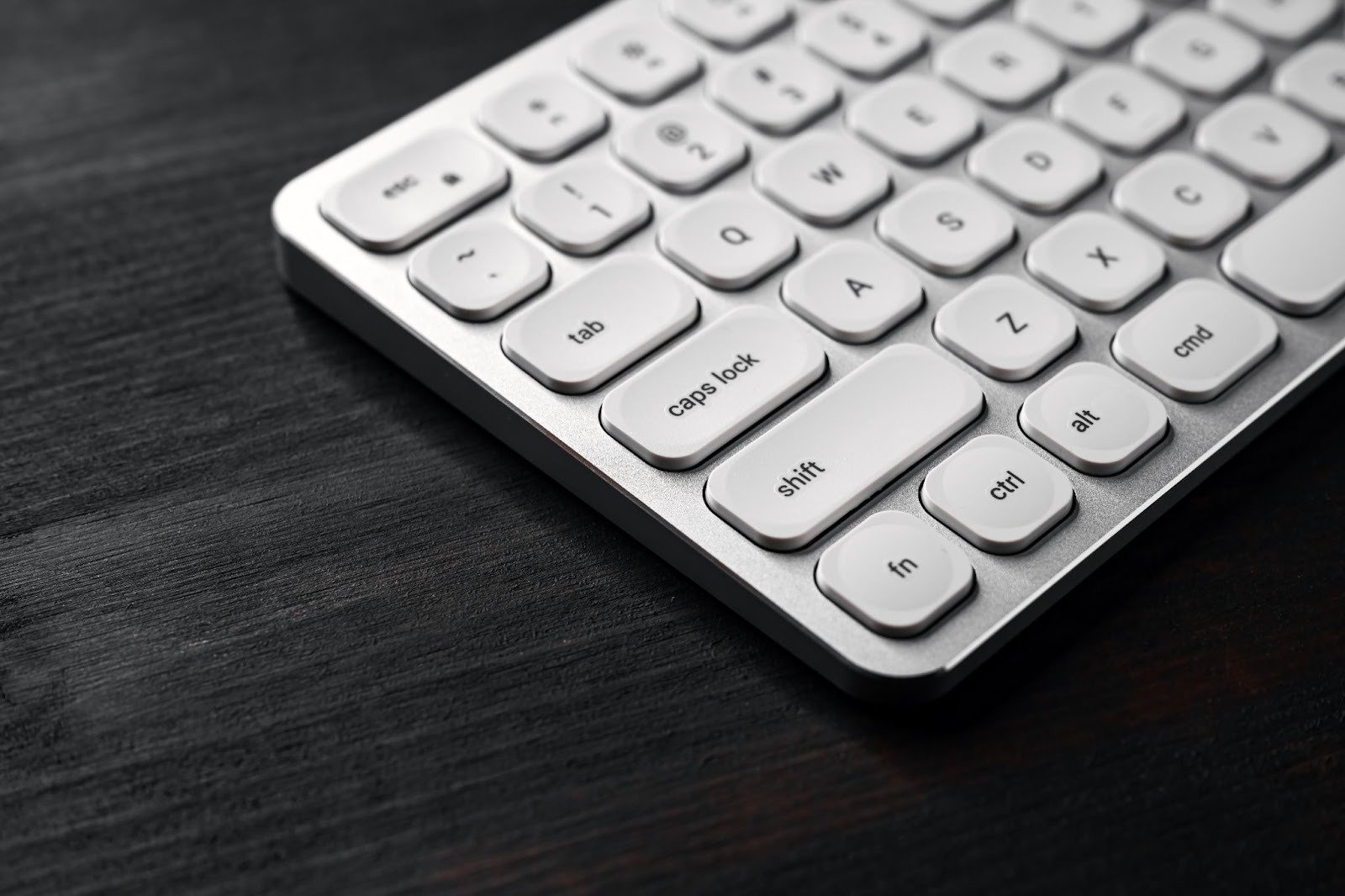
We’ve all experienced that situation. Whether it’s an intense gaming session where you’re crouching and sprinting to escape enemy fire or just typing like mad to make a deadline, suddenly a sharp “beep” sound disturbs you and the screen freezes with a pop-up window. You’ve just turned on Sticky Keys by mistake.
For most users, this option is more than just an inconvenient one-time annoyance. If you are frequently having fights with this shortcut, then you have come to the right place. The following manual will show you step by step how to disable Sticky Keys both on Windows and Mac so that your keyboard functions exactly as you expect it to.
What Are Sticky Keys and Who Needs Them?
It is definitely good to know what Sticky Keys actually do, even if you are quite sure that you do not want to use it. It is an accessibility feature that is available on most operating systems, e.g. Windows, as well as macOS. This feature is mainly intended to help physically impaired people who may not be able to press several keys simultaneously.
The regular shortcuts on computers usually require pressing two or more keys at the same time, for example Ctrl + Alt + Delete or Shift + S. For people that suffer from physical disabilities or have limited control over their muscles, performing those finger exercises might be completely impossible. Sticky Keys break down these combinations. So, if the user presses the keys Ctrl, then Alt, and then Delete, in this order, the computer will understand it as the command made by pressing them simultaneously.
Unexpected Activation
If it is such a helpful feature then, why do so many people look for a way to disable Sticky Keys? Most of the time the problem is with the activation method. By default, pressing the Shift key 5 times in quick succession activates this feature.
This causes the problem of the overlap of the two different groups:
- Gamers: Most PC games use the Shift key for various actions such as sprinting or crouching. Thus, repeating this key a lot is the gameplay element and unknowingly it triggers the system interrupt.
- Fast Typists: Writers or programmers who type at a fast pace may switch to capital letters or use special characters, thus unintentionally launching the dialog box.
When to Keep It Enabled
You probably do not need this feature if you have no trouble pressing multiple keys at the same time. If you ever use only one hand to type though (e.g. you are holding your phone or a cup of coffee in the other hand), then this feature might come handy temporarily. However, for most of the standard workflows, the best way to avoid interruptions is to turn off the shortcut.
Ways to Turn Off Sticky Keys on Windows 10 and 11
Microsoft offers users different methods to configure accessibility settings. If you are a Windows 10 user or you have already switched to Windows 11, there is no need to worry as it is still very easy to do. In this article, we have provided information about three ways to do this, namely: the keyboard shortcut for the quick toggle, the settings option for the permanent fix, and the classic Control Panel way.
Method 1: By Using the Keyboard Shortcut
The easiest and quickest method to turn off Sticky Keys is the same from which you can switch it on. If the system tray already has an icon of a few blocks that suggests the feature is on, then you might want to try the following:
- Hit the Shift key five times very fast.
- Also, trying to simultaneously press two modifier keys (for instance, Ctrl and Alt) may sometimes resolve the “sticking” issue, depending on your particular setup.
However, this method just temporarily disables it. It does not stop the feature from showing up again the next time you overuse the Shift key. Therefore, a permanent solution requires that you get to the level of settings.
Method 2: Disabling Shortcut Trigger via Windows Settings (The Permanent Fix)
To put the sticky keys shortcut away for good, you will need to disable the keyboard shortcut that is responsible for activating it.
Windows 11 Users:
- Go to the Start menu and select the gear icon to open Settings.
- Choose Accessibility from the options in the left-side menu.
- Locate Keyboard under the Interaction section.
- Toggle off Sticky Keys.
- Important: After clicking the sticky keys toggle arrow, the additional settings will appear. To disable sticky keys activation by pressing the Shift key five times, simply deselect the option “Keyboard shortcut for Sticky Keys”.
Windows 10 Users:
- Launch Settings via the Start menu.
- Choose the Ease of Access category.
- With the left panel, go down to “Interaction” and select Keyboard.
- Find the heading “Use Sticky Keys” and switch it off.
- Remove the checkmark from the box “Allow the shortcut key to start Sticky Keys”.
When that box is unchecked, the Shift key is totally unchecked as well. Now you are free to press it without any annoying interruptions.
Method 3: From the Control Panel
There is no denying that some people are more comfortable with the traditional Control Panel interface, and therefore the choice is still there if you are aware of it.
- Launch the Run prompt with the Windows Key + R combination.
- Type control and press Enter.
- In the Control Panel, switch to either “Large icons” or “Small icons” view and click the Ease of Access Center.
- Select the “Make the keyboard easier to use” link.
- Deactivate the checkbox that says “Turn on Sticky Keys”.
- For further customization, hit the “Set up Sticky Keys” option. In the opened window, uncheck “Turn on Sticky Keys when SHIFT is pressed five times”.
- Choose Apply and then OK.
How to Turn Off Sticky Keys on a Mac
The approach of Apple to accessibility features is a bit different as most of the features are gathered under “Accessibility” in the System Settings. Although Mac users rarely face this problem compared to Windows users, it still might happen.
That’s How It Works on a Mac
The feature on macOS is exactly the same as on Windows, but instead of the Settings in Windows, it is handled through the System Settings (or System Preferences in the case of the older versions). Apple has simplified these menus very much especially with macOS Ventura and Sonoma.
Complete Instructions for macOS
macOS Ventura and newer:
- Apple Menu is at the top-left corner of the screen, click it.
- Choose System Settings from the drop-down list.
- On the left, open the Accessibility tab.
- Scroll down to the “Motor” category and open Keyboard.
- Decide whether to keep Sticky Keys on or off by clicking the toggle; green means on.
- Click the little “i” (info) icon located next to the toggle if you want to turn off the shortcut.
- Turn off the switch marked “Press the Shift key five times to toggle Sticky Keys”.
- Click Done.
macOS Monterey and older:
- Access System Preferences via the Apple Menu.
- Choose the Accessibility feature.
- Besides the keyboard, you will find a drop-down for Motor where you can also find the keyboard.
- Go to the Hardware section.
- Take off the check mark next to “Enable Sticky Keys”.
- Click the Options button.
- Take off the check mark next to “Press the Shift key five times to toggle Sticky Keys”.
- Click OK.
Disabling the shortcut is a must. In case you skip this step, you could accidentally switch the feature back on when you are not paying attention, which means that you will be back at the starting point.
Troubleshooting: Why Can’t I Turn Off Sticky Keys?
The suggestions mentioned above should fix your problem in 99.9% of cases. Nevertheless, no system is perfect. So, in case you have tried to turn off Sticky Keys using the above methods but the feature turns itself on again or the keyboard becomes crazy, read the following tips on how to deal with such situations.
Corrupted Keyboard Drivers (Windows)
By and large, a driver issue is the cause when the keyboard acts weirdly (keys get stuck, lagged, or not registered) and not by “Sticky Keys” setting.
- Right-click the Start icon and go with Device Manager.
- Expand Keyboards.
- Right-click the keyboard device you are using (usually called “Standard PS/2 Keyboard” or “HID Keyboard Device”).
- Update or reinstall the driver (If Windows does not find new drivers, you might have to do this manually) Reboot your computer to see how the changes have taken effect.
Malware or Glitches
Generally, such a phenomenon as malware is quite rare in this particular case. However, in some cases, a virus may impersonate the behavior of a system or change the settings. If, after the reboot, the settings are still gone, you need to run a full system scan with Windows Defender or your favorite antivirus.
Registry Hacks (Advanced Windows Users)
If the two ways – the Settings menu and the standalone Control Panel – do not help to keep Sticky Keys off, the final resort would be to use the Registry Editor to alter the settings forcibly.
Warning: Registry editing entails certain risks. If you make a wrong move, your system can become unstable. Thus, only proceed if you are fully aware of what you are doing and back up your registry first.
- Press Windows Key + R to open the Run box.
- Type regedit, and press Enter.
- Go to the address HKEY_CURRENT_USER\Control Panel\Accessibility\StickyKeys
- Locate the Flags string.
- Double-click Flags.
- Change the “Value data” to 506. Generally, this figure corresponds to the default state of “off” for Sticky Keys as well as the related shortcuts.
- Press OK and restart your computer.
Third-Party Software Conflicts
Do you make use of the keyboard-specific apps like Logitech G Hub, Razer Synapse, or Corsair iCUE? Occasionally, these programs have their own macro or accessibility settings which can override the Windows defaults. So, be sure that there are no “sticky” macros on your keyboard software.
Better Productivity with Alternative Accessibility Options
There is no doubt that accessibility features refer to essential computing tools. It is quite possible that you might find another feature more helpful as a productivity booster rather than Sticky Keys.
Filter Keys
Some people get confused between Filter Keys and Sticky Keys and thus mistakenly think that they are doing the same job. Actually, these two features help you quite differently. While Sticky Keys is there to help you make key combinations, Filter Keys is a command to the keyboard to disregard keystrokes that are either too short or too fast. Thus, if the user has hand tremors and presses the same key twice accidently then this will be truly helpful. In the situation where you think your keyboard is “losing” your strokes because you type either too lightly or too quickly, please make sure that the Filter Keys feature is also turned off in the same Accessibility panel.
Toggle Keys
Are you frequently pressing the Caps Lock by accident and thus typing entire sentences in uppercase? In this case, Toggle Keys will be a blessing for you. Once the feature is enabled, your computer plays a unique sound whenever you hit Caps Lock, Num Lock, or Scroll Lock. This way you get an instant audio signal and thus can immediately fix the mistake.
On-Screen Keyboard
If your physical keyboard is out of order, or you simply cannot be bothered to sort it out, then a good alternative is the On-Screen Keyboard (OSK). It lets you “type” by mouse clicks only. It is to be found in the same Accessibility or Ease of Access section as Sticky Keys.
Customizing Shortcuts
It is not necessary to always disable unwanted features only. You can think of adjusting your workflow as well. I know that, for instance, a particular shortcut puzzle really bugs you (e.g. Ctrl + Shift + Alt + S), and you think that you really do need Sticky Keys to manage it. Actually, you can usually find a way to change the shortcut within the app in question to a simpler one, or else use a nifty thing called Microsoft PowerToys to change keys on a low level entirely.
Customize Your Experience
Since the computer manufacturers consider their creations as universal tools, they have to be equipped with settings for everyone. Although, “everyone” does not mean “you”.
Whether it is lightning-fast response time that you need as a competitive gamer or a non-distraction environment for a writer, taking control of your keyboard settings only requires one tiny step, but it means a tremendously big difference. Once you have mastered the paths to disabling Sticky Keys on Windows or Mac, you can say goodbye to one of the most common barriers that stand in the way of your smooth computing experience.
Have a quick look at your current settings right now. Get rid of that tick in the “Allow shortcut key” box. Your “future” self will definitely be grateful to you – the one in the middle of a game or a deadline.
If you want to read more or find official documentation on accessibility features, check out the Microsoft Accessibility Support page or the Apple’s Accessibility overview.
