
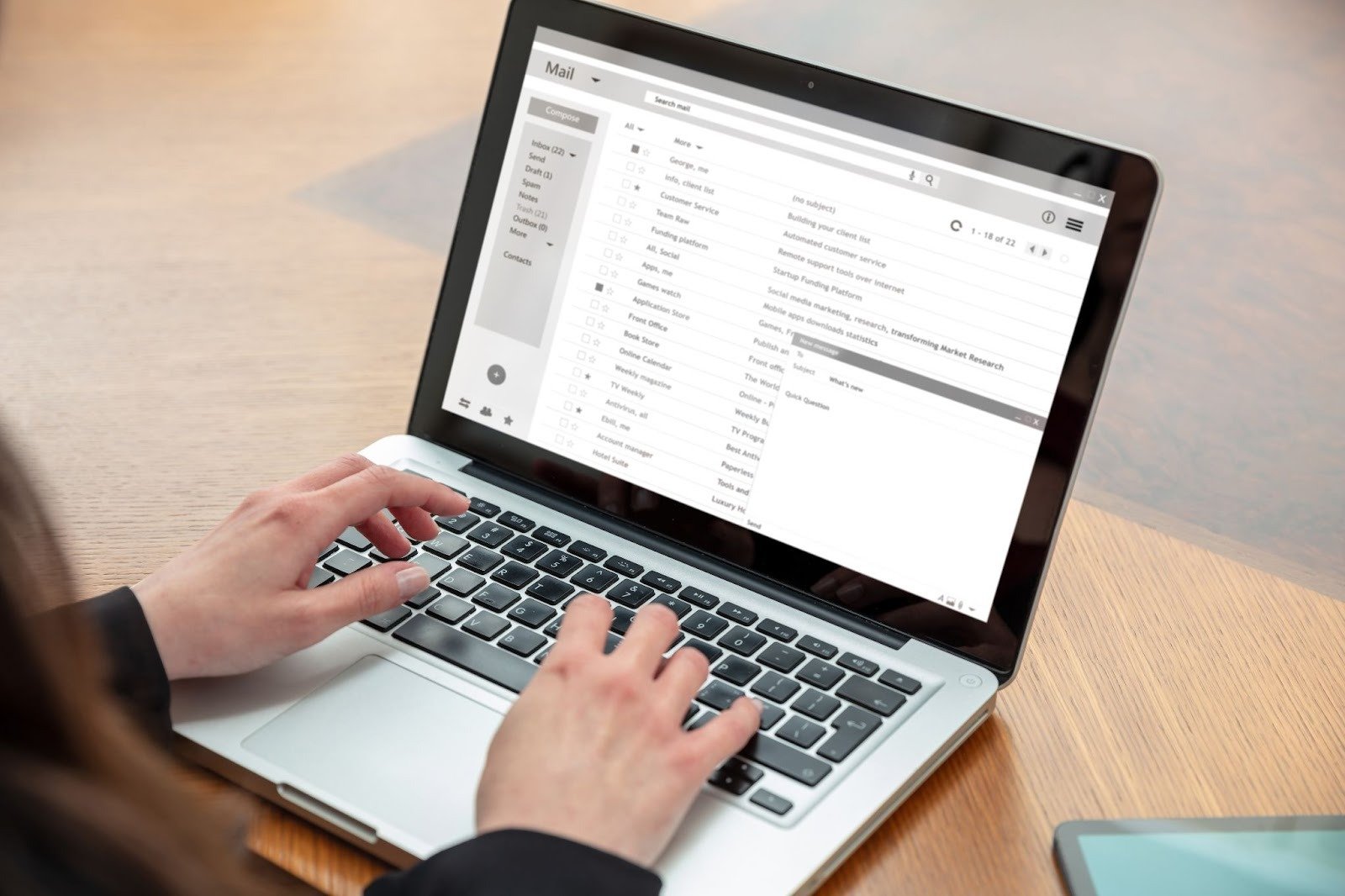
We’ve all been in a situation like this. You have a major update for your project team or maybe a newsletter for your local book club. You start composing a new email, click «To,» and start typing. John… wait, which John? Sarah… did I include her last time? Before you realize it, you’ve been at it for ten minutes trying to remember addresses, only to discover that the person you actually need to send it to is missing.
Besides being a tedious task, it is highly prone to errors and absolutely a waste of your precious time.
Luckily, there is a better option available. Setting up an email group in Gmail—more accurately called “Contact Label” within Google’s ecosystem—is the best productivity trick for anyone who is regularly in touch with the same group of people. It turns a monotonous, manual work into one simple click.
This tutorial will cover everything from setting up, handling, and fixing these groups. By the time you finish reading, you will not only have figured out how to do it but also why, thus helping you achieve efficient, precise, and professional communication.
Understanding the Basics: What Are Gmail Groups?
Prior to getting into the nitty-gritty of the procedure, we must first clarify some of the terms. If you were to look for a “Create Group” button in your Gmail settings, you would not see any. It is because Google no longer refers to them as groups in the traditional sense. Nowadays, an email group in Gmail is a collection of contacts under a certain label in the Google Workspace ecosystem.
Imagine a “Label” as a kind of sticker that you put on a particular person in your digital address book. Whenever you want to send an email to everyone who has that sticker, you just type the label name, and Gmail instantly fills in everyone who is connected to that label in the “To” field.
Real-World Use Cases
It matters because using the “write once, send to many” method is crucial for efficient workflow nowadays. Let’s analyze these cases:
- Project Management: Instead of entering the email addresses of six members every time you send a status update, just type “Project Alpha.”
- Education: Teachers can have a label for “Parents- Class 5B” to share homework updates, with no fear of accidentally leaving out a parent.
- Freelancing: A consultant might have a label feature for “Active Clients” to make availability updates.
The main advantage here is trustworthiness. Human mistakes are inevitable when you rely on memory to enter addresses. But, if you rely on a predetermined email group in Gmail, you will be consistent every single time.
Step-by-Step: How to Create an Email Group in Gmail
Building your first group is very easy; however, to do this, you have to temporarily leave your inbox. It is not possible to create these lists automatically inside the mail composer window; you have to use Google Contacts.
1. Accessing Google Contacts
Open your favorite web browser and sign into your Gmail account first.
- You should be able to see the “App Launcher” symbol (the square made of nine dots) near the top right corner of your Gmail screen.
- Keep scrolling and tapping the contacts icon (the blue person figure). Alternatively, you can directly visit contacts.google.com.
2. Selecting Your Contacts
At your disposal will be a list of every contact you have saved once you are on the Contacts main page.
- Bring your cursor over the avatar (or the first letter) of a contact which you wish to add. You will see a checkbox.
- Mark the box to select that person.
- Keep scrolling through the list and marking the boxes for all other people whom you want to include in this specific email group in Gmail.
3. Creating the Label
Once your contacts are checked, glance at the toolbar which is positioned on top of the list.
- Hit the Label button (it resembles a bookmark tag).
- Click on Create label.
- Enter a clear and descriptive name for your group.
Pro Tip on Naming: Make sure to plan your names carefully. If you are a member of different groups, wear prefixes. For instance, write “Work – Marketing Team” and “Personal – Book Club.” This will allow all your professional groups to be listed together when you type “Work” in the “To” field later on.
When you hit the Save button, your group becomes operational. Now you can return to Gmail, start writing a new email, and put the name of your label in the recipient area. The group name will be shown—press it and immediately all the email addresses will be filled.
Managing Your Group Members Effectively
You’ve created your group but now what? The real challenge, by many users’ failing, is keeping it that way. Members switch companies, change their names or simply don’t need to be on your mailing list anymore. Without actively managing your email group in Gmail, eventually, it will become congested and useless.
Adding New Members
If a new team member joins and you wish to include him or her in the group, there is no need to delete your label and start from scratch.
- Navigates back to Google Contacts.
- Locate the new person on your list (or create a new contact for him/her).
- Click More (three dots) beside the name.
- Choose the Label to which you want to add the person.
Removing Members
Taking someone out is just as important and simple as adding a new one. Moreover, it is necessary for data protection—such as when an ex-employee shouldn’t receive sensitive internal updates.
- Click on the specific label name in the left-hand sidebar of Google Contacts to view only those members.
- Press the More button next to the person you want to remove.
- Uncheck the Label name (or hit “Remove from label”).
The Importance of Regular Audits
Have you ever come across a phenomenon of gradual deterioration but in the case of data? Well, marketing research tells us that every year around 22% of email lists become obsolete simply because people change their workplaces or abandon old addresses.
Remind yourself every three months to go over your groups. Take a look at the members of the most frequently used email group in Gmail and ponder: Does this individual still require these messages? Am I missing someone? Keeping your data clean means no bounce backs and enhances your communication.
Organizing Sub-groups
If you are a real user who likes to break down things even more, the notion of “nesting” your ideas may be of interest to you. For example, you could have a large group named “All Staff.” Within this one, you might need particular labels for “All Staff – Managers” and “All Staff – Interns.” It gives you the freedom to send different messages. While general announcements can go through the main list, sensitive strategic documents can be addressed specifically to managers.
Best Practices for Communicating with Groups
Whatever the case is, the fact that you get to email 50 people at one go doesn’t necessarily mean that you should act recklessly. There is a certain way of mass emailing that shields you and your recipients.
The Power of BCC
BCC is the key here.
If an email group in Gmail is put in the “To” or “CC” box, the email addresses of every other recipient will be visible to everyone. This may be acceptable in a corporate setting. However, for a group of volunteers, a parents association, or even a client list, this is a breach of privacy.
Such a move in the “To” field also leads to the dreaded “Reply All” situation. One person sends a reply to all with “Got it!”, the next one follows, and so on until all phones are buzzing. Using the BCC field guarantees that other people’s replies will come only to you.
Writing Engaging Subject Lines
When someone realizes that they are among the recipients of a mass email, their interest level decreases significantly. The information gained is assumed to be of a general nature. To address this, your subject line has to be precise and lead to an action.
- Bad: “Update”
- Good: “Action Required: Project Alpha Timeline Changes – Please Review by Friday”
Navigating Personalization Limits
A con of email groups in Gmail is no personalization. You can’t use dynamic fields like Hi {FirstName}. Everyone gets the same letter, without any variation.
To make up for this, make your message neat and at the same time far-reaching. “Hi Team,” “Good morning everyone,” or “Dear Community Members” are fine. If the message is significant and localizes individual attention, a mass group email won’t be the tool for you—in which case, writing personal notes might be a better choice.
Troubleshooting Common Issues
Since no setup is perfect, one can’t dispel the risk of an occasional glitch. Here you will find a number of problems most users have with their email group in Gmail and the ways how to handle them.
Email Delivery Failures (Bounces)
In the event of sending your email to the group, a failure report lands in your inbox immediately, that address may be one among your contact list which is invalid.
- Solution: Thoroughly go through the error message. It will specify the email address which didn’t work. Go to Google Contacts, locate the person and either fix the error or delete the contact from the label.
The “Limit” Issue
Google implements sending limitations to avert spam.
- Free Gmail Users: You can send up to 500 emails daily.
- Google Workspace (Paid): You can send 2,000 e-mails per day.
- One email to 50 people equals 50 e-mails. If your email group in Gmail has 600 members, a free account can’t send them a message—it will be a failure. For such large lists, it is best to use a dedicated email marketing service like Mailchimp or Constant Contact.
Group Not Auto-Populating
There are times when you write down your label’s name in the “To” field and nothing responds.
- Solution: This problem is most likely related to synchronization and occurs when you have just created the label. Refresh your Gmail page (F5 or Command+R). If you don’t see it still, then clear your browser cache. Sometimes, signing out and in again forces Google to re-sync your Contacts data with Gmail.
Advanced Features and Integrations
After being proficient with a basic email group in Gmail, you can extend the use of these labels throughout the whole Google ecosystem.
Google Groups vs. Contact Labels
Earlier, we informed you that most of the time when people say groups they mean “Labels”. Nevertheless, Google Groups for Business is separate software.
- Contact Label: Under your control only. You are the one who handles the list. It resides within your contacts.
- Google Groups: Communicates via its own email address (e.g., support@yourcompany.com). Members join or leave the group at their own will. This creates a shared inbox/forum archive.
If you are looking for a shared inbox where several people are able to reply, then you need Google Groups, not just a Contact Label.
Workspace Integrations
The labels which you have created are not limited to the use of email only.
- Google Calendar: While setting up an appointment, enter the name of the Gmail email group in the guest list. It will automatically send an invite to everyone in that label.
- Google Drive: If you want to share a file, write the label name in the sharing box and instantly your whole team will have access.
Automation Scripts
For the real geeks, Google Apps Script is a way to achieve automation at a very high level. Scripts are basically small programs that add contacts to particular labels automatically when a form submission takes place (such as Google Form). Some programming knowledge is needed here, but in short, you are getting an email group in Gmail which is an automatically running database.
Conclusion
It’s never been easier than now to create an email group in Gmail, and it’s still one of the simplest things you ever do while productivity is concerned infinitely after.
It may take you a quarter of an hour today to get your contacts organized and labels made, but you will be doing yourself a favor for a whole year as that is when you will save hours typing and frustration. More importantly, no more mental stress of doubting, “Did I forget anyone?”
Don’t let a manual entry slow your pace. Open Google Contacts right away, check your list and make your first label. Future you—and the people you will be sending out to—are quite grateful.
Is there some Gmail productivity hack that you use everyday that we totally missed? Or maybe there is an issue you need addressed regarding the management of your labels? Feel free to leave a comment below and don’t forget to subscribe if you want more tutorials coming your way about how to master your digital workflow.
